Mattermost Cheatsheet
Usage
Channels are the main organizing structure. There are three kinds:
- Public Channels which anyone can join – best to name channels by purpose (you get Town Square and Off-Topic by default)
- Private Channels which are invite only by channel creator
- Direct Messages note if you anticipate need to draw other people into a direct message then set up a private channel instead. Adding another person to a Direct Message channel creates a new one and the added person cannot see the history.
You can drag and drop files and other attachments. Web urls will link when you hit enter.
You can also pin entries to keep them at the top.
Use @ plus the username to add users to your message. They will be notified. You can also use @all or @channel to fill up everyone’s email inbox.
Search is excellent. You can also use hashtags like this #mattermost-usage Clicking on a hashtag will isolate all the tagged messages in a search panel.
Text Formatting
Mattermost responds to Markdown text formatting commands for things like headings, bold/italic, bullet/numbered lists, tables, etc. See the link to the user guide below. Also see a Markdown version of these instructions below. (Useful for copy and paste into a Mattermost channel)
Big Blue Button conferencing
Two ways to access:
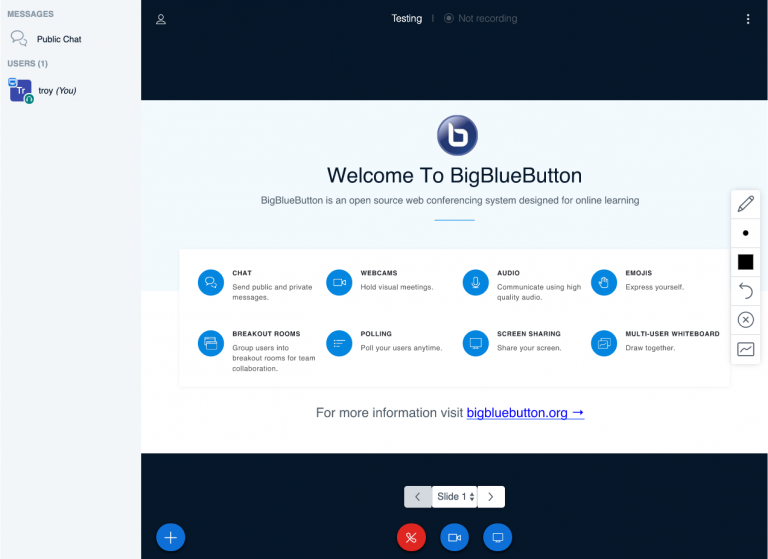
- Plugin icon/menu in upper right by search. This drops a meeting button in the channel which any channel member can use. Create a limited private channel and access from within there to limit attendence.
- Click on a users name/avatar and Start the meeting from there to have a one on one meeting.
Polls
Usage
/poll "Is Matterpoll great?" creates a poll with the answer options "Yes" and "No". You can also leave out the double quotes and just type /poll Is Matterpoll great?.
If you want to define all answer options by yourself, type /poll "Is Matterpoll great?" "Of course" "In any case" "Definitely"- Note that the double quotes are required in this case.
Poll Settings
Poll Settings provider further customisation, e.g. /poll "Is Matterpoll great?" "Of course" "In any case" "Definitely" –progress –anonymous. The available Poll Settings are:
–anonymous: Don’t show who voted for what at the end –progress: During the poll, show how many votes each answer option got –public-add-option: Allow all users to add additional options
Complete Mattermost User Guide
For more instructions see the full user guide at: https://docs.mattermost.com/guides/user.html
# Usage
Channels are the main organizing structure. There are three kinds:
* **Public Channels** which anyone can join - best to name channels by purpose (you get Town Square and Off-Topic by default)
* **Private Channels** which are invite only by channel creator
* **Direct Messages** note if you anticipate need to draw other people into a direct message then set up a private channel instead. Adding another person to a Direct Message channel creates a new one and the added person cannot see the history.

You can drag and drop files and other attachments.
Web urls will link when you hit enter.

You can also pin entries to keep them at the top.

Use @ plus the username to add users to your message. They will be notified. You can also use @all or @channel to fill up everyone's email inbox.

Search is excellent. You can also use hashtags like this #mattermost-usage Clicking on a hashtag will isolate all the tagged messages in a search panel.

## Text Formatting
Mattermost responds to Markdown text formatting commands for things like headings, bold/italic, bullet/numbered lists, tables, etc. See the link to the user guide below. Also see a Markdown version of these instructions below. (Useful for copy and paste into a Mattermost channel)

## Big Blue Button conferencing
Two ways to access:
* Plugin icon/menu in upper right by search. This drops a meeting button in the channel which any channel member can use. Create a limited private channel and access from within there to limit attendence.
* Click on a users name/avatar and Start the meeting from there to have a one on one meeting.

## Polls
### Usage

/poll "Is Matterpoll great?" creates a poll with the answer options "Yes" and "No". You can also leave out the double quotes and just type /poll Is Matterpoll great?.

If you want to define all answer options by yourself, type /poll "Is Matterpoll great?" "Of course" "In any case" "Definitely"- Note that the double quotes are required in this case.

### Poll Settings

Poll Settings provider further customisation, e.g. /poll "Is Matterpoll great?" "Of course" "In any case" "Definitely" --progress --anonymous. The available Poll Settings are:

--anonymous: Don't show who voted for what at the end
--progress: During the poll, show how many votes each answer option got
--public-add-option: Allow all users to add additional options

## Complete Mattermost User Guide
For more instructions see the full user guide at: <https://docs.mattermost.com/guides/user.html>
Leave a Reply